Piclines · picture to lines
JPG to DWG, true to the millimetre.
Turn a JPG, PNG or WebP into a DWG that opens in AutoCAD, BricsCAD and DWG TrueView. One line where your picture has one, at the size you set.
JPG, PNG, WebP or PDF · up to 20 MB · deleted after 24 hours
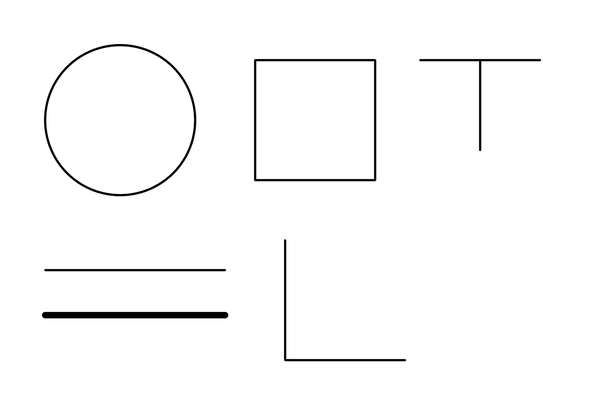

A real result: 165 mm typed as the width, and the 50 mm circle measures 50 mm. The thick line at the bottom left became one centre line, not two.
A DWG, not a picture inside a DWG
Some converters only place your JPG in a drawing as an image. Piclines traces it: the DWG holds real polylines you can select, measure, offset and trim. It is saved as AutoCAD 2004 (R2004), which every current CAD program opens.
One line, not two
Most tracers draw an outline around every stroke — two lines where your drawing has one, which is useless for CAD. For drawings, Piclines follows the middle of each stroke, so a line stays a line, however thick it is in the picture. For parts you want to cut, switch to outlines.
Set the real size
- Drop the JPG. The preview appears in under a minute.
- Type the drawing's real width in millimetres — or click two points whose distance you know, such as the ends of a dimension line, and type that distance.
- Download: DWG, DXF and SVG together, in one zip named after your picture.
Good to know
- The straighter and sharper the picture, the cleaner the lines: a scan beats a photo taken at an angle.
- Text in the picture is traced as lines, not as editable text.
- The preview is free; a download costs one credit. While Piclines is in beta, a new account gets its credits from us.
More uses